

Loading...
Loading...
QLab with feedback
What does QLab do? QLab makes it simple to create intricate designs of light, sound, and video for live performance. When you are done designing, switch to “show mode” and run your show just by pressing “GO”.
The software is available at QLab.app. You can try QLab for 2 channel audio and 1 screen video without needing a license.
Due to the nature and volume of information feedback and variables are only available in TCP mode. This may cause a noticible increase in network traffic.
This is being updated and maintained for QLab5. QLab 4.7 compatibility is checked and will be continued when possible. While QLab3 is detected, some features may not work.
QLab versions 5.2 and onward will require version 2.1.0 or newer of this module!
See below for OSC passcode warnings.
Contributions for development and maintenance of this open source module are always welcome https://github.com/sponsors/istnv
| Setting | Description |
|---|---|
| Target Host/IP | Enter the hostname or IP address of the QLab computer. You can enter 127.0.0.1 if Companion is running on the same computer. |
| Target Port | Enter the port number where QLab is listening for OSC messages. This defaults to 53000. Has no effect on QLab4 (or QLab3) |
| Use TCP? | Check to enable TCP mode. This is required for variables and feedback. |
| Use Tenths? | If checked, the variable r_left will display 0.1 seconds when less than 5 seconds. If unchecked, the time left will be adjusted by 1 second for a more accurate count-down. |
| Expose Cue Name Variables? | The cue name variables for all cue numbers and IDs are not normally visible in the list of variables window. Enabling this will show them which could clutter the list with hundreds of variables. |
| OSC Passcode | Enter a passcode if needed for the QLab workspace. QLab 5 requires a passcode to work reliably from Companion. |
| Workspace | Dropdown selection to select a specific Workspace. You can enter 'default' or leave blank to control front-most workspace (if more than one is open) in QLab4. QLab5 commands go to all open workspaces. You can change the IP Control Port too allow multiple workspaces open at once. |
| Specific Cue List | Dropdown selection to limit control to a specific cuelist. |
| Action | Description |
|---|---|
| Go | Tell the current cue list of the given workspace to GO. |
| Stop | Stop playback but allow effects to continue rendering. e.g., playback stops, but reverbs decay naturally. |
| Panic | Tell the workspace to panic. A panic is a brief gradual fade out leading into a hard stop. A double panic will trigger an immediate hard stop. |
| Panic In Time | Tell the workspace to panic over time specified. |
| Reset | Reset the workspace. Resetting stops all cues, returns the playhead to the top of the current cue list, and restores any temporary changes made to cues (such as retargeting via a Target cue or adjustments using a "live" OSC method.) |
| Next | Move the selection to the next cue (or cue sequence) |
| Previous | Move the selection to the previous cue (or cue sequence) |
| Pause | Pause all currently running cues in the workspace. |
| Resume | Un-pause all paused cues in the workspace. |
| Preview | Preview the selected cue without moving the Playhead. |
| Audition GO | 'Audition' the current cue QLab5 Only |
| Audition Preview | 'Audition' Preview the selected cue without moving the Playhead. QLab5 Only |
| Toggle Pause | Pause/Unpause selected cue |
| Pause Toggle (Cue/ID) | Toggle pause mode for the selected cue. Unlike the built-in togglePause command, this one uses the state of the current cue |
| GoTo (Cue/ID) | Move the playhead to (Cue/ID). Does not start the cue. |
| Select (Cue/ID) | Select (Cue/ID). |
| Start (Cue/ID) | Start (Cue/ID). Does not move the playhead. If the specified cue is playing, this command has no effect. |
| Stop (Cue/ID) | Stops (Cue/ID) if Playing. Does not move the playhead. |
| Panic (Cue/ID) | Panic (Cue/ID) if Playing. Does not move the playhead. |
| Panic (Cue/ID) In Time | Panic (Cue/ID) over time specified if Playing. Does not move the playhead. |
| Show Mode | Enable for Show Mode, Disable for Edit Mode. |
| Audition Window | Show or Hide the Audition Window. |
| Override Window | Show or Hide the Override Controls Window. |
| Master Override | Toggle or Set Master overrides. Enabling an override will open/show the Override Control window <br/><ul><li> QLab 4 and 5: Midi, MSC, SysEx, Timecode </li><li> QLab 4 only: OSC, Art-Net </li><li> QLab 5 only: Dmx, External/Local Network </li></ul> |
| Set Minimum Go | Sets the time for double-GO protection |
| Increase Prewait | Increases the prewait time by given time for the selected cue. |
| Decrease Prewait | Decreases the prewait time by given time for the selected cue. |
| Increase postwait | Increases the postwait time by given time for the selected cue. |
| Decrease postwait | Decreases the postwait time by given time for the selected cue. |
| Increase duration | Increases the duration time by given time for the selected cue. |
| Decrease duration | Decreases the duration time by given time for the selected cue. |
| Increase Start Time | Increases the Start Time by given time for the selected cue. |
| Decrease Start Time | Decreases the Start Time by given time for the selected cue. |
| Increase End Time | Increases the End Time by given time for the selected cue. |
| Decrease End Time | Decreases the End Time by given time for the selected cue. |
| Set/Unset Infinite Loop | Set / Unset the Infinite Loop property of the selected cue. |
| Set/Unset Hold last frame | Set / Unset the Hold last frame property of the selected cue. |
| Set/Unset Arm | Set / Unset the Arm property of the selected cue. |
| Set/Unset Flag | Set / Unset the Flagged property of the selected cue. |
| Set/Unset Autoload | Set / Unset the Autoload property of the selected cue. |
| Set Continue Mode | Sets the continue mode of the selected cue. |
| Set Cue Color | Sets the color of the selected cue. |
| Custom OSC Command | Send a custom OSC command to QLab. Useful for commands not yet implemented.<br/>If you use this, consider submitting a feature request to have the command added as a built-in action |
| Copy Unique Cue ID | Copies the Unique ID of the cue at the Playhead to actions and feedbacks. |
The next action or feedback inserted will have the Unique ID already filled in.
There are presets included for most of these actions.
Show Mode, Audition Window, Arm, Flag, and Autoload actions also have a Toggle option to invert the current setting of the cue.
For additional actions please raise a feature request at github
Some commands have been updated to a consolidated/scoped mode. Instead of three different 'stop' commands (global/cue number/cue id) the new commands have an option to choose where to apply the command. More commands will be added when time permits.
Commands implemented: Go, , Start, Stop, Arm
| Variable | Description |
|---|---|
| $(INSTANCENAME:q_ver) | Version of QLab attached |
| $(INSTANCENSME:ws_id) | Unique ID of the Default (first) workspace (May not be the 'frontmost' in QLab) |
| $(INSTANCENAME:n_id) | UniqueID of the current Playhead Cue |
| $(INSTANCENAME:n_name) | Name of the current Playhead Cue or [none] |
| $(INSTANCENAME:n_num) | Number of the current Playhead Cue |
| $(INSTANCENAME:n_type) | Cue Type of the current Playhead Cue |
| $(INSTANCENAME:n_cont) | Continue mode of the Playhead Cue: <ul><li>NoC: No continue</li><li>Con: Continue</li><li>Fol: Follow</li> |
| $(INSTANCENAME:n_notes) | First 20 characters of the Note on the Playhead Cue |
| $(INSTANCENAME:n_stat) | Playhead Cue Status: "✕" if broken, "⏽" if loaded, "⏵" if running, "⏸" if paused, otherwise "·" |
| QLab5 adds a status for Auditioning "❲⏵❳" | |
| $(INSTANCENAME:r_id) | UniqueID of the current Running Cue |
| $(INSTANCENAME:r_name) | Name of the current Running Cue or [none] |
| $(INSTANCENAME:r_num) | Number of the current Running Cue |
| $(INSTANCENAME:r_notes) | Note on the running cue |
| $(INSTANCENAME:r_stat) | Running Cue Status: "✕" if broken, "⏽" if loaded, "⏵" if running, "⏸" if paused, otherwise "·" |
| QLab5 adds a status for Auditioning "❲⏵❳" | |
| $(INSTANCENAME:r_hhmmss) | Remaining time for Running Cue as "HH:MM:SS" |
| $(INSTANCENAME:r_hh) | Hours left for Running Cue |
| $(INSTANCENAME:r_mm) | Minutes left for Running Cue |
| $(INSTANCENAME:r_ss) | Seconds left for Running Cue |
| $(INSTANCENAME:r_left) | Shortest display time left for Running Cue. Shows .1 increments if tenths option set. |
| $(INSTANCENAME:r_secs) | Seconds left for Running Cue. Can be manipuated with Companion functions |
| $(INSTANCENAME:e_secs) | Seconds elapsed for Running Cue. Can be manipuated with Companion functions |
| $(INSTANCENAME:e_total) | Total run time (seconds) for Running Cue. Can be manipuated with Companion functions |
| $(INSTANCENAME:s_count) | Number of cues currently selected |
| $(INSTANCENAME:s_id) | Unique ID of the selected cue (or the first ID if more than one cue is selected) |
| $(INSTANCENAME:s_ids) | List of Unique IDs of all cues selected, separated by ':' |
| $(INSTANCENAME:c_color) | Current cue Color as HEX RRGGBB |
| $(INSTANCENAME:min_go) | Current value of double-go protection (in seconds) |
| $(INSTANCENAME:q_{num}_name) | Name of cue number {num}. See below for certain restrictions. |
| $(INSTANCENAME:id_{ID}_name) | Name of cue ID {ID}. See below for certain restrictions. |
| $(INSTANCENAME:q_{num}_elapsed) | Elapsed time in seconds cue number {num}. See below for certain restrictions. |
| $(INSTANCENAME:id_{ID}_elapsed) | Elapsed time in seconds of cue ID {ID}. See below for certain restrictions. |
| $(INSTANCENAME:q_{num}_id) | Unique ID of cue number {num}. See below for certain restrictions. |
| $(INSTANCENAME:id_{ID}_num) | Cue number cue ID {ID}. May be blank. See below for certain restrictions. |
To use these, replace INSTANCENAME with the name of your module instance which starts as qlabfb unless you change it.
| Feedback | Description |
|---|---|
| Playhead Cue Color as Background | Sets the button backgound to QLab color of the current playhead cue |
| Running Cue Color as Background | Sets the button background to QLab color of the currently running cue |
| Cue Number Color as Background | Sets the button background to QLab color of a specified cue |
| Colors for GO status | Set the button color for the GO button state: active or disabled via the double-go timer |
| Indicate Workspace Mode | Set the button to indicate the QLab workspace mode: Audition (window on), Show Mode, Edit Mode |
| Indicate Audition Monitors Open | Set the button to indicate ALL Audition monitors are Open |
| Indicate Override Window On | Set the button to indicate Override Window is Visible |
| Indicate Master Override | Set the button to indicate if the selected Override is Active (Turned off) |
| Show if ANY cue is runing | Set the button to show when any cue is running |
| Show Cue # is Running | Set the button to show when a specific cue is running |
| Show Cue ID is Running | Set the button to show when a specific cue ID is running |
| Show Cue is Armed | Set the button to show when a specific cue is Armed |
| Show Cue is Flagged | Set the button to show when a specific cue is Flagged |
| Show Cue is Selected | Set the button to show when a specific cue is Selected |
This module connects to QLab on port 53000 by default.
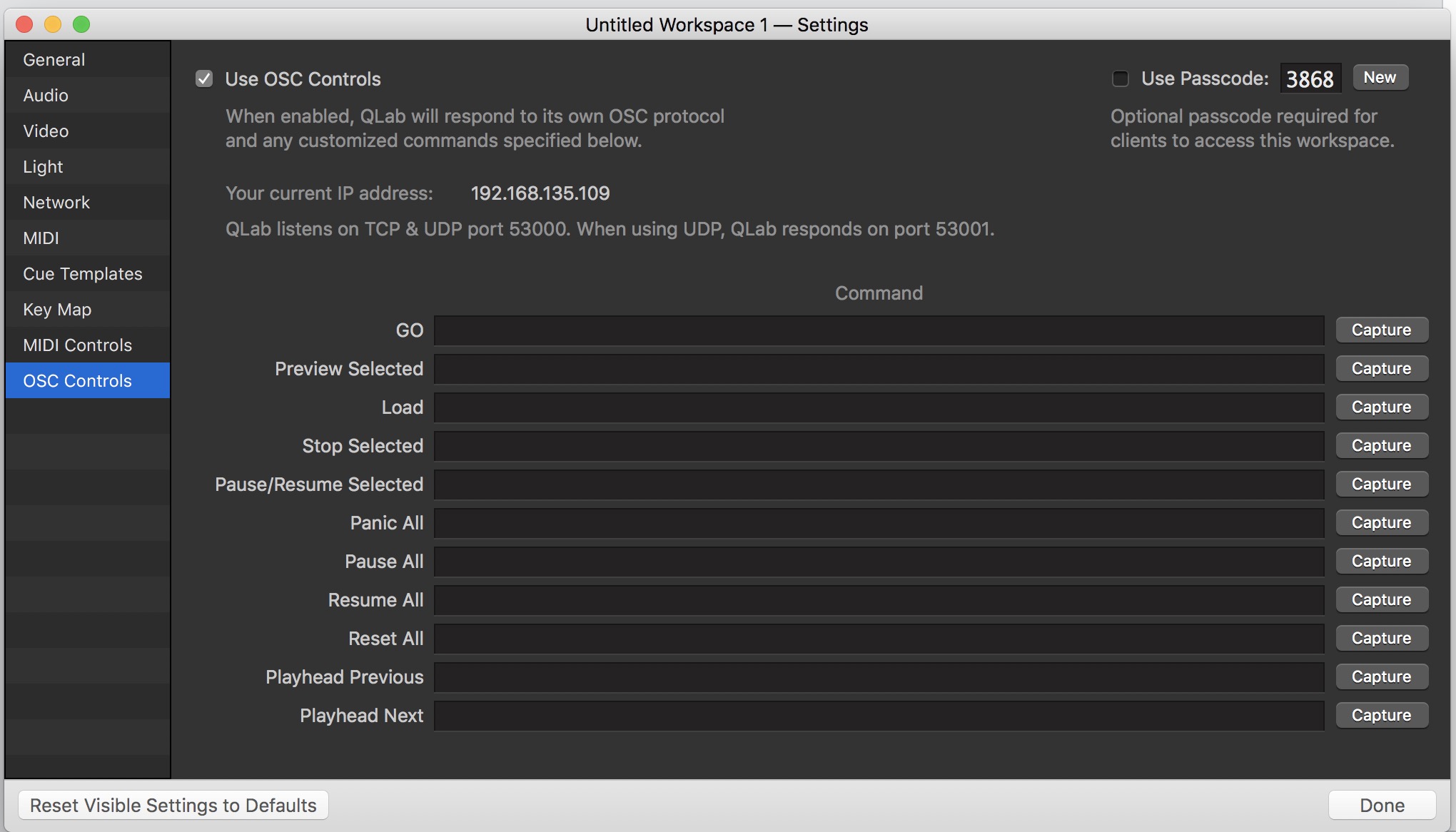
From QLab preferences OSC controls tab make sure you have the "Use OSC controls" checkbox ticked.
QLab 5 configuration is under the Network / OSC Access page on the Workspace Settings window.
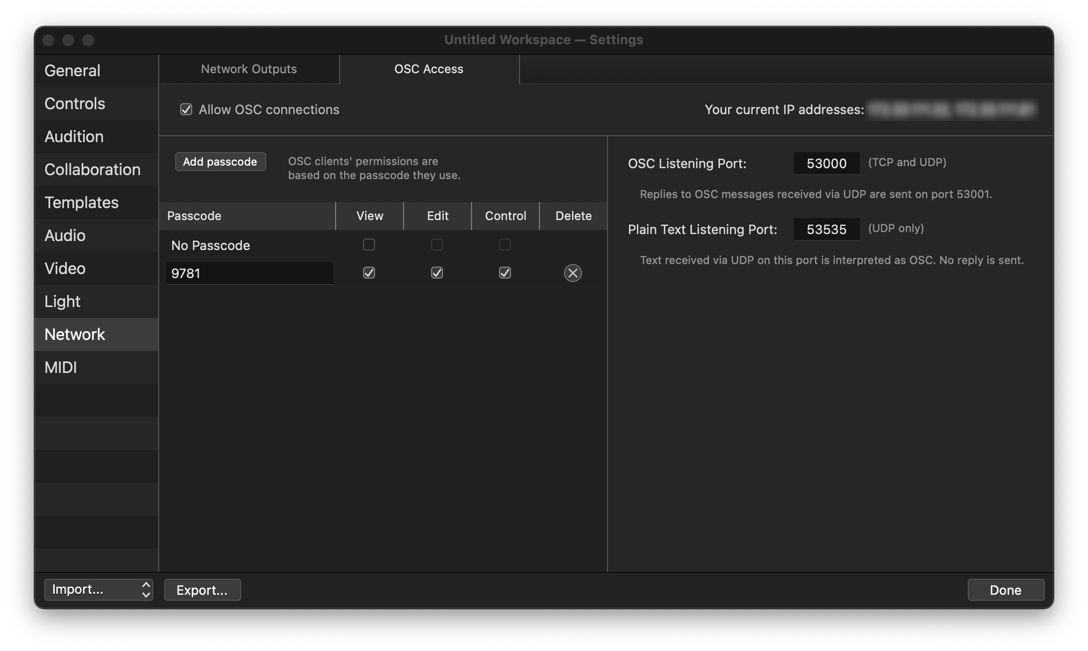
QLab 5 creates new workspaces with a random OSC passcode which changes the module startup procedure. As a security measure, QLab will ignore any commands if an incorrect passcode is sent too many times in a row. This module has been designed to be robust and automatically recover from most network errors. To prevent QLab from locking out, this restart/retry function will stop when detecting an incorrect passcode. You will need to enter and save the correct passcode to restart the module.
QLab can run many cues at the same time while Stream Deck has a limited number of buttons visible at once. So which one cue is the most useful to show on a button? This module looks for the most recently run (GO) cue and favors run all at once Group cues over other types of cues.
QLab allows almost any characters in a Cue Number. Some characters don't play well with OSC or Companion. Using '$', '(', or ')' in your Cue Number won't work if you want to use the q_{num}_name variable or the q_bg feedback.
Transport actions, variables, and feedbacks have an ID version that uses the QLab Unique Cue ID as the target instead of the Cue Number. QLab does not show this internal ID so there is a special action Copy Unique Cue ID that will temporarily insert the ID of the playhead/selected cue into the ID style actions.
The examples and descriptions use {num} as a place marker for the Cue or ID to use.
Do not enter the braces {}: To refer to Cue #10 you would enter q_10_name.
Figure 53
CommunityFigure 53
Community