

Bitfocus AS
logo
logo
Bitfocus AS
logo
logo
Sign upSign in

Loading...

Bitfocus

Subscribe to our newsletter

The latest news, articles, and resources, sent to your inbox.

FacebookInstagramGitHubYouTubeLinkedIn

Products

  • Buttons
  • Companion

Integrations

  • Supported Devices
  • Developer Community
  • Connection Development

Support

  • Support Overview
  • Documentation
  • Video Tutorials
  • Community Forum

Sales

  • Resellers & Integrators
  • Buttons Pricing

Updates

  • Case Studies
  • Events & Trade Shows
  • Press Releases
  • Product Updates
  • Webinars

Legal

  • Legal Overview
  • Privacy Policy
  • Buttons EULA
  • Terms & Cookie Policy

Company

  • About us
  • Press kit
  • Careers

© 2026 Bitfocus AS. All rights reserved.

  1. Connections
  2. Pixotope - Pixotope

Pixotope

Pixotope

Communityv1.1.0Updated 4 months ago
DocumentationReport an issueView on GitHub

Documentation

Pixotope (Gateway API)

Control Pixotope virtual production graphics from Companion/Buttons by sending commands to the Pixotope Gateway HTTP API.

Compatibility

  • Works with Bitfocus Companion 4.x and Bitfocus Buttons.
  • Requires a running Pixotope system with Pixotope Gateway reachable on the network.

Requirements

  • Network access from the Companion/Buttons host to the Gateway machine.

  • The Gateway exposes a single publish endpoint:

    http://{Gateway IP}:{Port}/gateway/{API Version}/publish
    

Configuration

Set these in the connection settings:

  • Gateway IP — IP of the machine running Pixotope Gateway (default 127.0.0.1).
  • Gateway Port — Gateway HTTP port (default 16208).
  • Gateway API Version — the version segment of the publish URL (default 2.2.0). The Gateway does not validate this, so the default is fine in most setups.
  • Default Engine Target — service name used when an action leaves the target blank (default ~LOCAL~-Engine).
  • Live Value Poll Interval — how often (ms) live "watch" feedbacks refresh (default 1000). Lower = fresher, more traffic.
  • Connection Check Interval — heartbeat used only when nothing is being watched (default 5000; 0 disables it).

The connection indicator turns green once the Gateway responds.
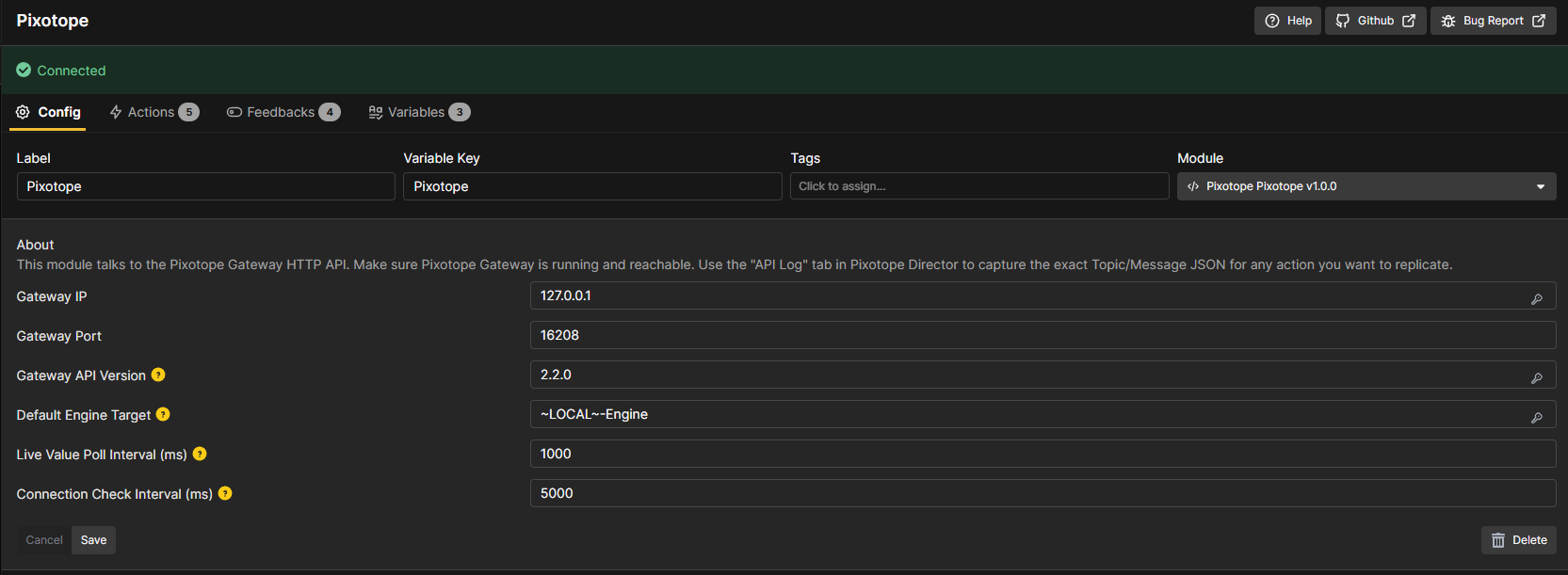
Connection settings

Finding object and Store paths

You rarely type these by hand:

  • Editor right-click — in the Pixotope editor, right-click a property on an object to copy its Gateway URL, e.g. …/publish?Type=Call&Target=~LOCAL~-Engine&Method=GetProperty&ParamObjectSearch=DirectionalLight_0.LightComponent0&ParamPropertyPath=Intensity. Paste it into Set Property, Get Property, or the property feedbacks.
  • Director API Log — open the API Log tab, perform the action in the UI, then copy the logged Topic/Message JSON into Raw API Request.
  • Store paths — browse the Store tree by opening this in a browser, then drill into a parent to see its child keys: http://{Gateway IP}:{Port}/gateway/2.2.0/publish?Type=Get&Target=Store&Name=State (e.g. State.General.FrameRate). A wrong or empty path returns null, which shows as a blank variable.

Actions

  • Engine: Set Property — set a property value. Paste the editor URL and enter the value.
  • Engine: Get Property — read a property value once (on press) into a Companion variable.
  • Engine: Call Event (Blueprint) — trigger a Blueprint event (CallFunction); paste the editor URL. To pass arguments, append ParamFunctionArguments as a JSON array with text values quoted, e.g. …&ParamFunctionArguments=[10,"HELLO"] (numbers bare, strings in quotes). Unquoted values like [10,HELLO] work in a browser but not here, because the module needs valid JSON.
  • Store: Set Value — set a show-wide value in the Pixotope Store.
  • Raw API Request — send any Topic/Message; paste payloads captured from the Director API Log.
  • Clear stored property variables — remove all $(pixotope:prop_*) variables created at runtime.

Set Property with a pasted editor URL and a value:
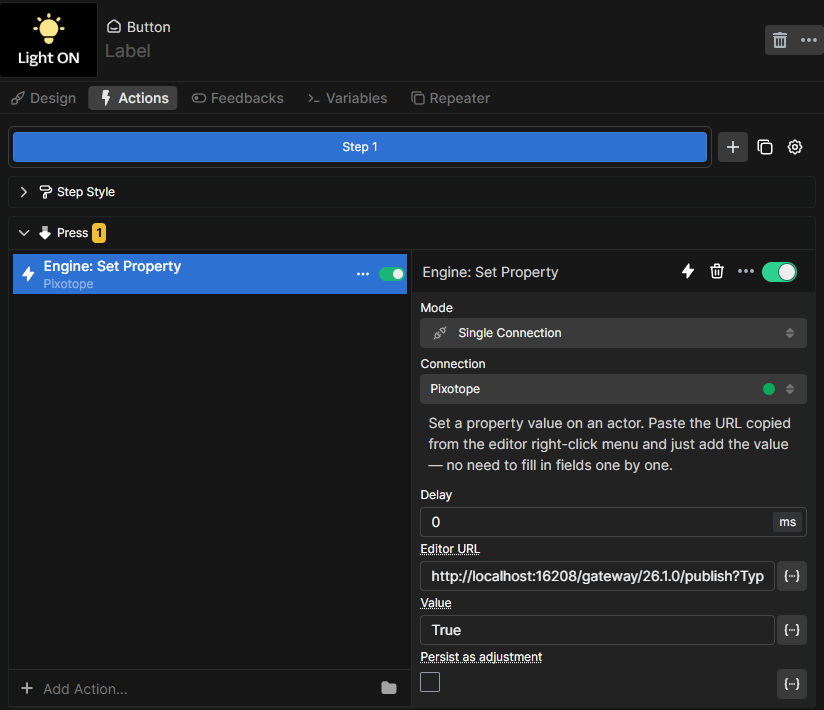
Set Property action

Set Property — about the value: the URL you copy from Pixotope includes the property's current value. The module ignores any value embedded in the URL — paste the URL into the Editor URL field (it provides the object and property to target) and type the value you want to send in the separate Value field.

Raw API Request — examples

The Raw API Request action sends any Topic/Message. Field rules: Name is used only for Set/Get; Method is used only for Call; a blank Target means the Default Engine Target. It is fire-and-forget — it logs the HTTP status at debug but does not display returned values (use the Watch feedbacks to read values back).

Set a property (e.g. change a light's intensity)

  • Topic Type: Call

  • Target: (blank, or ~LOCAL~-Engine)

  • Method: SetProperty

  • Message:

    { "Params": { "ObjectSearch": "DirectionalLight_1.LightComponent0", "PropertyPath": "Intensity", "Value": 50 } }
    

Get a property

  • Topic Type: Call

  • Method: GetProperty

  • Message:

    { "Params": { "ObjectSearch": "DirectionalLight_1.LightComponent0", "PropertyPath": "Intensity" } }
    

Call a function on an actor

  • Topic Type: Call

  • Method: CallFunction

  • Message:

    { "Params": { "ObjectSearch": "MyActor", "FunctionName": "Play", "FunctionArguments": {} } }
    

Get a Store value

  • Topic Type: Get
  • Target: Store
  • Name: State.General.FrameRate
  • Message: {}

Set a Store value

  • Topic Type: Set
  • Target: Store
  • Name: State.General.<writable path>
  • Message: { "Value": "yourValue" }

Feedbacks

  • Gateway connection OK — turns the button green while the Gateway is reachable.
  • Engine: Property differs from default — paste a property's editor URL; turns the button orange while the property's value differs from its default.
  • Engine: Watch property → variable (live) — paste a property's editor URL and a variable name; the property is polled and kept live in $(pixotope:prop_<name>). Applies no styling.
  • Store: Watch value → variable (live) — the same, but reads a value from the Pixotope Store (a state path such as State.General.FrameRate).

Variables

  • $(pixotope:connection_status) — Connected / Disconnected / Connecting.
  • $(pixotope:gateway_url) — the resolved publish URL.
  • $(pixotope:prop_<name>) — a property or Store value, kept live by a Watch feedback or set on demand by Get Property. Module variables are global, so reference them from any button, trigger, or text field. They are created at runtime (not predefined) and last for the session; removing a Watch feedback removes its variable, and Clear stored property variables removes them all.

A button displaying a live property value via a watched variable:
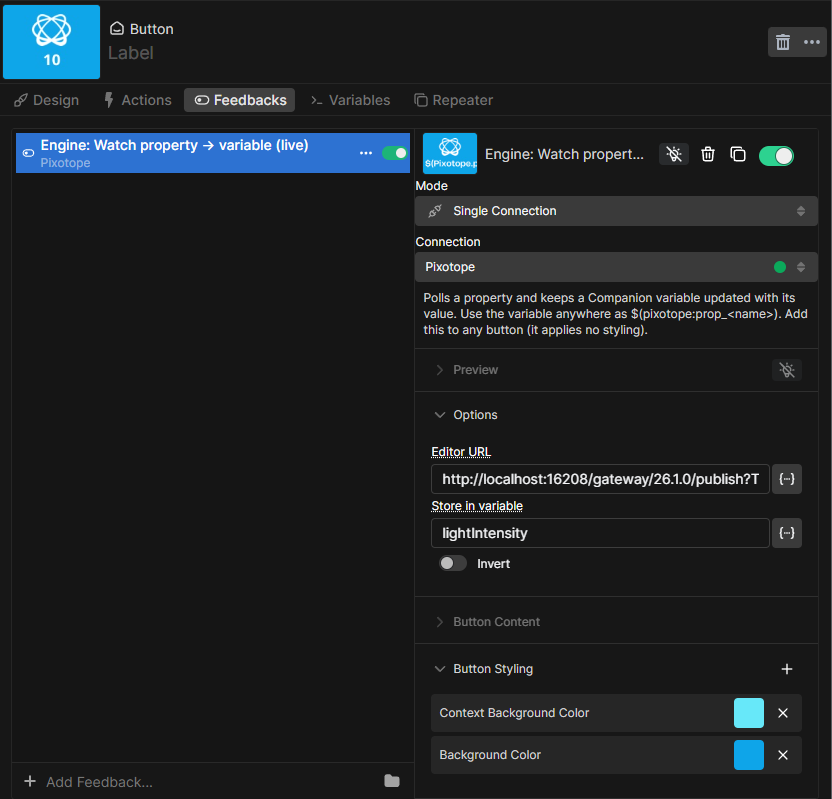
Watching a value into a variable

Network traffic & freshness (built for live use)

  • Only what's on screen is polled — a request is sent only for values with a live Watch feedback attached.
  • No redundant heartbeat — while values are being watched, those polls prove reachability, so the separate connection check is skipped; the indicator is driven by the watch traffic.
  • Pooled keep-alive connection and no overlapping polls, so the Gateway isn't hammered.
  • Actions fire immediately on press and are never delayed by polling.

Troubleshooting

  • Variable is blank — the Store/property path returned null; double-check the path (see Finding object and Store paths). The debug log shows … returned null when this happens.
  • Connection indicator red — the Gateway is unreachable. The module reconnects automatically once it responds again; to force it, disable/re-enable the connection. If the Gateway process itself stopped, restart Pixotope (server-side; the module cannot recover that).
  • Module won't appear / load after re-importing — remove the previously installed version first, then import the new package, and restart the app.

Authentication

The Pixotope Gateway API is designed for trusted studio LANs and does not use API keys. Keep the Gateway on a protected network.

Details

Manufacturer
Pixotope
Product
Pixotope
Latest Version
v1.1.0
Author
Oystein Larsen
Contributor
larsenTFG(16)

Open Issues and Requests

To file a new issue, you need to sign up for a user on GitHub.

Go to GitHub issues →

In other news

Buttons v1.8 Main with text

Buttons v1.8

October 2, 2026

Buttons v1.8 IBC award win

Bitfocus wins IBC2026 Best of Show Award for latest Buttons enhancements

September 21, 2026

Buttons v1.8 grey background

Biggest functionality boost yet makes Buttons the perfect platform for broadcast and media management

September 10, 2026

Vivid Buttons on screen

Bitfocus Buttons makes complex OB production feel simple

August 10, 2026

View all news →