

Loading...
Loading...
XR/MR · XAir · XR12 · XR16 · X18 · +6 more
This Module controls the Midas M Air and Behringer X Air series of consoles.
Contributions for development and maintenance of this open source module are always welcome https://github.com/sponsors/istnv
Target IP: Enter the IP address of the Mixer
Fader Max: Limit fader adjustments to this maximum value when toggled in the action.
Scan for XAir Mixers? Module will scan for XAir mixers on the network
Select mixer by Name: Choose a mixer from those located on the network
*Note Once a mixer (name) is chosen, the module will attempt to re-locate it if the IP changes. This feature can be disabled by un-checking the Scan for Mixers option
| Console Function | What it does |
|---|---|
| Channel, USB, FX Send, Fx Return, Bus and Main mute | Mutes or Unmutes the selected Channel, USB, FX Send, Fx Return, Bus and Main |
| Channel, USB, FX Send, Fx Return, Bus and Main fader set | Sets the level of the selected Channel, Channel, USB, FX Send, Fx Return, Bus and Main fader |
| Channel, USB, FX Send, Fx Return, Bus and Main fader adjust | Adjust the selected Channel, Channel, USB, FX Send, Fx Return, Bus and Main fader up or down by steps *see notes |
| Store Fader Channel, USB, FX Send, Fx Return, Bus and Main | Stores the selected fader value for later recall *see notes |
| Recall Fader Channel, USB, FX Send, Fx Return, Bus and Main | Sets the selected fader to the stored value |
| Channel, USB, FX Return, Bus, Main Pan Balance set | Set Pan Balance |
| Channel, USB, FX Return, Bus, Main Pan Balance adjust | Adjust Pan Balance |
| Channel, USB, FX Return, Bus, Main Pan Balance store | Store Pan Balance |
| Channel, USB, FX Return, Bus, Main Pan Balance recall | Recall Pan Balance |
| Set State of Insert, Gate, EQ, Compressor, LR send, HPF | Turn the selected processing element On or Off |
| Channel, USB, FX Send, Fx Return, Bus and Main label | Sets the text label in the scribble strip of the selected Channel, USB, FX Send, Fx Return, Bus and Main |
| Channel, USB, FX Send, Fx Return, Bus and Main color | Sets the color of the scribble strip of the selected Channel, USB, FX Send, Fx Return, Bus and Main |
| Mute Group | Turns the selected mute group on or off |
| Bus send | Adjust Bus send for channels |
| Store Bus send | Stores the selected Bus send level for later recall *see notes |
| Recall Bus send | Recalls the selected Bus send level |
| Channel, USB, FX Send, Fx Return, Bus and Main Solo | Solos the selected Channel, USB, FX Send, Fx Return, Bus and Main |
| Clear Solo | Clears all active solos |
| Solo Level Set | Sets the level of the Solo (monitor) output |
| Set Monitor Source | Sets the Source of the Monitor output |
| Channel Solo Mode | Set solo mode for Channels (AFL/PFL) |
| Channel Solo Mode | Set solo mode for Channels (AFL/PFL) |
| PFL Dim | Enable/Disable PFL Dim/Attenuation |
| Solo Level Adjust | Adjust the Solo level up or down by steps *see notes |
| Solo Dim | Dims the Solo output level to the value configured in the console. |
| Solo Mute | Mutes the Solo output |
| Solo Mono | Controls the Mono mix-down of the Solo output |
| Headamp Gain: Adjust or Set | Modify the headamp gain for selected input |
| Phantom: Set or Toggle | Set Phantom power for selected input |
| USB Trim: Adjust or Set | Modify the USB Return trim value for selected input (18 only) |
| Polarity: Set or Toggle | Enable Polarity invert for selected input |
| HPF: Set or Toggle | Enable HPF for selected input |
| Snapshot: Load | Loads the given Snapshot from the console internal Snapshot list 1-64 |
| Snapshot: Save | Save the given Snapshot to the console internal Snapshot list 1-64 |
| Snapshot: Load Previous | Loads the previous (numerical) snapshot *see notes |
| Snapshot: Load Next | Loads the next (numerical) snapshot *see notes |
| Snapshot: Save Current | Saves/overwrites/updates the current snapshot (NO CONFIRMATION) *see notes |
| Tape Operation | Stop,Play,PlayPause,Record,RecordPause,Fast Forward,Rewind of the USB Playback |
Note mute, solo, processing: All mute, solo, and processing actions also have a Toggle option that inverts the current state of the board setting.
Note fader/level adjustment: This module stores fader position as a range from 0 (-oo dB) to 100 (+10dB). The conversion from position to dB is explained below. Fader changes also have an optional duration of 0 to 60000 mSec (0 to 60 seconds) to create cross fades. There is an option to limit levels to 0db. The adjustment amount entry will accept a dynamic variable/expression.
Note Storage and Recall: Each channel or bus send has one save value. Recall will only restore the last value saved. There are also 10 Global slots available to store a value that may be recalled to any channel. Recalling an empty slot will have no effect.
Note Snapshots: If the Previous/Next numbered Snapshot is empty, the mixer will not change snapshots. The Save snapshot function does NOT ask for confirmation before saving/overwriting. The Snapshot to load item can be a dynamic variable/expression.
Note Presets: There are some preset buttons included to some common button configurations with pre-built actions and feedback indicators. They use channel 1 as a demonstration. There is also a 'Rude Solo' button available.
| Variable | Description |
|---|---|
| $(INSTANCENAME:m_name) | Mixer Name |
| $(INSTANCENAME:m_model) | Mixer Model |
| $(INSTANCENAME:m_fw) | Mixer Firmware |
| $(INSTANCENAME:s_name) | Current Snapshot Name |
| $(INSTANCENAME:s_index) | Current Snapshot Number |
| $(INSTANCENAME:s_name_n) | Next Snapshot Name |
| $(INSTANCENAME:s_name_p) | Prior Snapshot Name |
| $(INSTANCENAME:s_name_{num}) | Name of Snapshot {num} *see notes |
| $(INSTANCENAME:l_lr) | Label on LR/Main |
| $(INSTANCENAME:l_rtn_aux) | Label on USB/Aux return |
| $(INSTANCENAME:l_ch#) | Label on Channel # |
| $(INSTANCENAME:l_bus#) | Label on Bus Master # |
| $(INSTANCENAME:l_dca#) | Label on DCA # |
| $(INSTANCENAME:l_rtn#) | Label on Return # |
| $(INSTANCENAME:p_lr) | Pan Balance on LR/Main |
| $(INSTANCENAME:p_rtn_aux) | Pan Balance on USB/Aux return |
| $(INSTANCENAME:p_rtn_aux_b#) | Pan Balance on USB/Aux return to Bus # (1,3,5) |
| $(INSTANCENAME:p_ch#) | Pan Balance on Channel # |
| $(INSTANCENAME:p_ch#_b#) | Pan Balance on Channel # to Bus # (1,3,5) |
| $(INSTANCENAME:p_bus#) | Pan Balance on Bus Master # |
| $(INSTANCENAME:p_rtn#) | Pan Balance on Return # |
| $(INSTANCENAME:p_rtn#_b#) | Pan Balance on Return # to Bus # (1,3,5) |
| $(INSTANCENAME:f_lr_d) | LR/Main Fader dB |
| $(INSTANCENAME:f_lr_p) | LR/Main Fader Percent |
| $(INSTANCENAME:f_lr_rp) | LR/Main Relative Loudness Percent *see notes |
| $(INSTANCENAME:f_rtn_aux_d) | USB/Aux return Fader dB |
| $(INSTANCENAME:f_rtn_aux_p) | USB/Aux return Fader Percent |
| $(INSTANCENAME:f_rtn_aux_rp) | USB/Aux return Fader Relative Loudness Percent |
| $(INSTANCENAME:f_ch#_d) | Channel # Fader dB |
| $(INSTANCENAME:f_ch#_p) | Channel # Fader Percent |
| $(INSTANCENAME:f_ch#_rp) | Channel # Fader Relative Loudness Percent |
| $(INSTANCENAME:f_bus#_d) | Bus Master # Fader dB |
| $(INSTANCENAME:f_bus#_p) | Bus Master # Fader Percent |
| $(INSTANCENAME:f_bus#_rp) | Bus Master # Fader Relative Loudness Percent |
| $(INSTANCENAME:f_dca#_d) | DCA # Fader dB |
| $(INSTANCENAME:f_dca#_p) | DCA # Fader Percent |
| $(INSTANCENAME:f_dca#_rp) | DCA # Fader Relative Loudness Percent |
| $(INSTANCENAME:f_rtn#_d) | Return # Fader dB |
| $(INSTANCENAME:f_rtn#_p) | Return # Fader Percent |
| $(INSTANCENAME:f_rtn#_rp) | Return # Fader Relative Loudness Percent |
| $(INSTANCENAME:f_fxsend#_d) | FX Bus Master # Fader dB |
| $(INSTANCENAME:f_fxsend#_p) | FX Bus Master # Fader Percent |
| $(INSTANCENAME:f_fxsend#_rp) | FX Bus Master # Fader Relative Loudness Percent |
| $(INSTANCENAME:h_gain#_p) | Headamp Gain for XLR #, Percent |
| $(INSTANCENAME:h_gain#_d) | Headamp Gain for XLR #, dB |
| $(INSTANCENAME:h_pp#) | Headamp Phantom Power for XLR # |
| $(INSTANCENAME:t_ch#_p) | USB Return Trim for Channel #, Percent |
| $(INSTANCENAME:t_ch#_d) | USB Return Trim for Channel #, dB |
| $(INSTANCENAME:t_rtn#_p) | USB Return Trim for FX Return #, Percent |
| $(INSTANCENAME:t_rtn#_d) | USB Return Trim for FX Return #, dB |
| $(INSTANCENAME:t_rtn_aux_p) | USB Return Trim for Aux(RCA)/USB, Percent |
| $(INSTANCENAME:t_rtn_aux_d) | USB Return Trim for Aux(RCA)/USB, dB |
| $(INSTANCENAME:m_source) | Current Monitor Output Source |
| $(INSTANCENAME:m_chmode) | Channel Solo Mode (AFL/PFL) |
| $(INSTANCENAME:m_busmode) | Bus Solo Mode (AFL/PFL) |
| $(INSTANCENAME:m_dimpfl) | Solo PFL Attenuation Enabled (true/false) |
| $(INSTANCENAME:m_dim) | Solo Dim Enabled (true/false) |
| $(INSTANCENAME:f_solo_d) | Solo (monitor) output level dB |
| $(INSTANCENAME:f_solo_p) | Solo (monitor) output level Percent |
| $(INSTANCENAME:f_fxsend#_rp) | FX Bus Master # Fader Relative Loudness Percent |
| $(INSTANCENAME:m_ch#) | Meter level on Channel # |
| $(INSTANCENAME:m_bus#) | Meter level on Bus # |
| $(INSTANCENAME:m_fxsend#) | Meter level FX Send # |
| $(INSTANCENAME:m_lr_?) | Meter level on Main out (l/r) |
| $(INSTANCENAME:m_mon_?) | Meter level on Monitor out (l/r) |
| $(INSTANCENAME:m_rtn_aux_?) | Meter level on Aux Return (l/r) |
| $(INSTANCENAME:m_rtn#_?) | Meter level on Return # (l/r) |
Note Snapshot numbers: Replace {num} with the desired 2-digit snapshot number: $(xair:s_name_04). A snapshot with no name will have a default name of '#{num}': #04 (it is probably empty).
Note Relative Loudness: This variable shows the perceived loudness with 0dB fader gain as a reference (100%). +/- 10dB changes become x2/x0.5 respectively as per the Loudness Equation (10 x log2). This allows for a more non-savvy user friendly readout. See table below.
Example values:
| d (dB) | % (_p) | % (_rp) |
|---|---|---|
| +10 | 100 | 200 |
| 0 | 75 | 100 |
| -10 | 50 | 50 |
| -20 | 38 | 25 |
| -30 | 25 | 13 |
| -40 | 19 | 6 |
| Feedback | Description |
|---|---|
| Color when Current Snapshot * | Sets the button color if the Selected snapshot is loaded |
| Color when Channel muted * | Sets the button color if the selected channel is muted (Channel/Bus/DCA/FX send/FX return) |
| Color when Main LR muted * | Sets the button color if the Main LR is muted |
| Color when USB/Aux in muted * | Sets the button color if the USB/Aux in is muted |
| Color when Mute Group on * | Sets the button color if the selected Mute Group is on |
| Color of Channel label | Sets the button color to match the selected channel (Channel/Bus/DCA/FX send/FX return) label |
| Color of Main LR label | Sets the button color to match the Main LR label |
| Color of USB/Aux label | Sets the button color to match the USB/Aux label |
| Channel Solo * | Changes the button when (Channel/Bus/DCA/FX send/FX return) Solo on |
| Main LR Solo * | Changes the button when Main LR Solo on |
| USB/Aux Solo * | Changes the button when USB/Aux Solo on |
| Phantom Power * | Changes the button when Phantom Power on |
| Use USB Return * | Changes the button when Input source is USB |
| Polarity * | Changes the button when Polarity Reverse is on |
| High Pass * | Changes the button when HPF is on |
| Processing status * | Changes the button according to the selected channel/process status |
| Monitor Source * | Changes the button when Monitor Source is set to selected option |
| Color when Solo Mute * | Sets the button color when the Solo output is muted |
| Color when Solo Mono * | Sets the button color when the Solo output is mono |
| Color when Solo Dim PFL * | Sets the button color when the Solo PFL is dimmed |
| Color when Solo Dim * | Sets the button color when the Solo output is dimmed |
| Color when Any Solo Active | Sets the button color when 'Clr Solo' is active |
| Meter Bar | Adds a graphic meter bar for the selected channel/bus to the button |
* Starred feedbacks are implemented as boolean (on/off) style and can be used in triggers. In order to provide an off trigger, these have a State option to select which particular state (on/off) to use for the feedback. The default style (button colors) is for the on state and may not be applicable to the off state.
Channel ranges are maximums (compatible with the X18). If you have an X12 or X16 invalid channels are ignored.
Solo Feedback indicator changes the button color to white on black with an overlay:<br>

For additional actions please raise a feature request at github
Similar to the X32, XAir faders implement a 4 linear functions approach with cross points at ‐10, ‐30, ‐60 dB to emulate the log function one can expect to manipulate volume data. Fader controls typically follow a log 10 function to match the human perception of loudness. The volume ratio generic formula: dB value = 20 * log (v2/v1) produces a response curve in blue, as below. On the other hand, XAir faders are using 4 different linear functions with increasing slopes to approximate the dB log transfer shape; the figure below shows the 4 different XAir segments in red (labeled X32).
In both representations, 0db maps to 0.75 and 10dB maps to 1.0
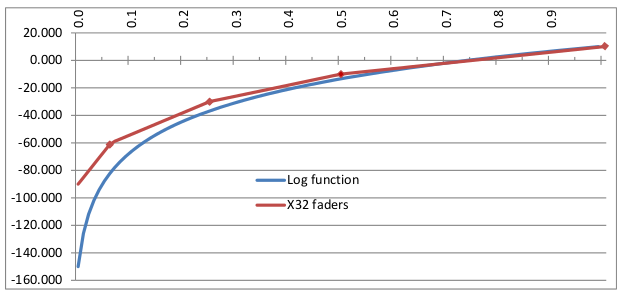
Since the mixer uses 1024 steps per fader, there may be some rounding differences between the mixer display and companion.