

Documentation
Ableton OSC Companion Module - Quick Help
⚠️ WARNING — Companion 5+ required
Starting from version 2.x.x, this module requires Companion 5+. If you want to use it with Companion 4.x, choose version 1.2.2.
Upgrading from 1.x: the Track Meter Visual feedback (PNG bargraph) is gone. Meters, volume and parameter values are now native Companion gauge elements bound to variables.
Welcome! This Companion module lets you control Ableton Live via OSC, with advanced visual feedback (clip names, colors, meters, etc.).
Quick Setup
- Install the AbletonOSC script in Ableton Live (see documentation).
- Restart Ableton Live and check that "AbletonOSC" is active in MIDI preferences/Control Surface.
- Add this module in Companion.
- Configure IP and ports:
- Target IP: Computer running Ableton (usually
127.0.0.1if same machine) - Send Port: 11000
- Receive Port: 11001
- Target IP: Computer running Ableton (usually
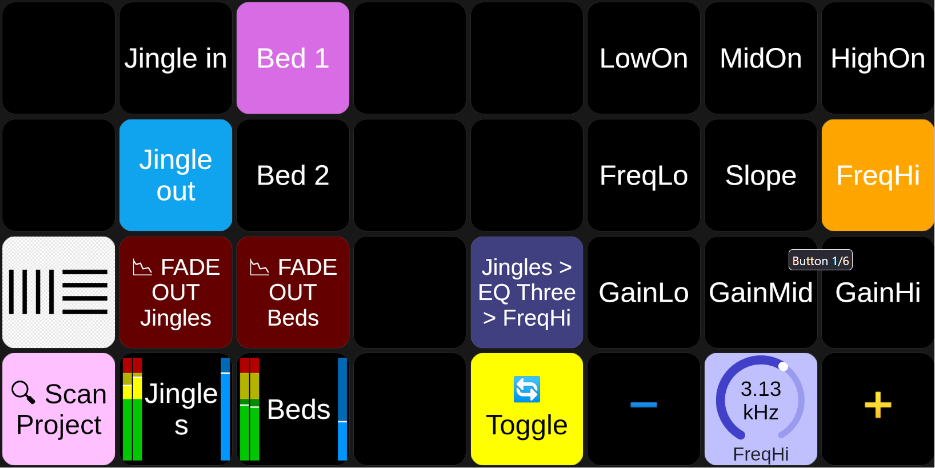
- Press the "🔍 Scan Project" button (in
0. Start Herecategory) to fetch your project structure (track names, scenes, clips, devices).
Preset Categories
Presets are organized hierarchically by track name for easy navigation:
- 0. Start Here: Scan Project button (run this first!)
- Clips / Fire / [Track]: Fire clips with color and blink feedback
- Clips / Stop / [Track]: Stop specific clips
- Clips / Fade / [Track]: Fade in/out clips
- Tracks / [Track]: Mute, Stop All, Fade controls per track
- Devices / Toggle / [Track]: Device on/off toggles
- Device Params / [Track] / [Device]: Parameter selection
- Controls: Step +/-, ON/OFF, Toggle for selected parameter
Main Features
- Fire/Stop clips: Buttons for each clip, with name and color.
- Mute/Unmute track: Shows track name, meter, and mute state.
- Stop track: Stops all clips on a track.
- Fade in/out: Smooth audio fades for tracks or clips.
- Device control: On/Off, set parameters, visual feedback.
- Dynamic variables: Real-time display of values (level, mute, parameters).
- Clip loop/warp control (v1.2.0): Set loop points to current playback position, toggle warping/looping with visual feedback.
- Audio Follow Video (Advanced Fade): Automate fades based on a variable (e.g., camera tally). When a camera goes ON AIR, the track fades in; when OFF AIR, it fades out. See the Advanced Fading Guide for details.
For more details, check the full documentation.